
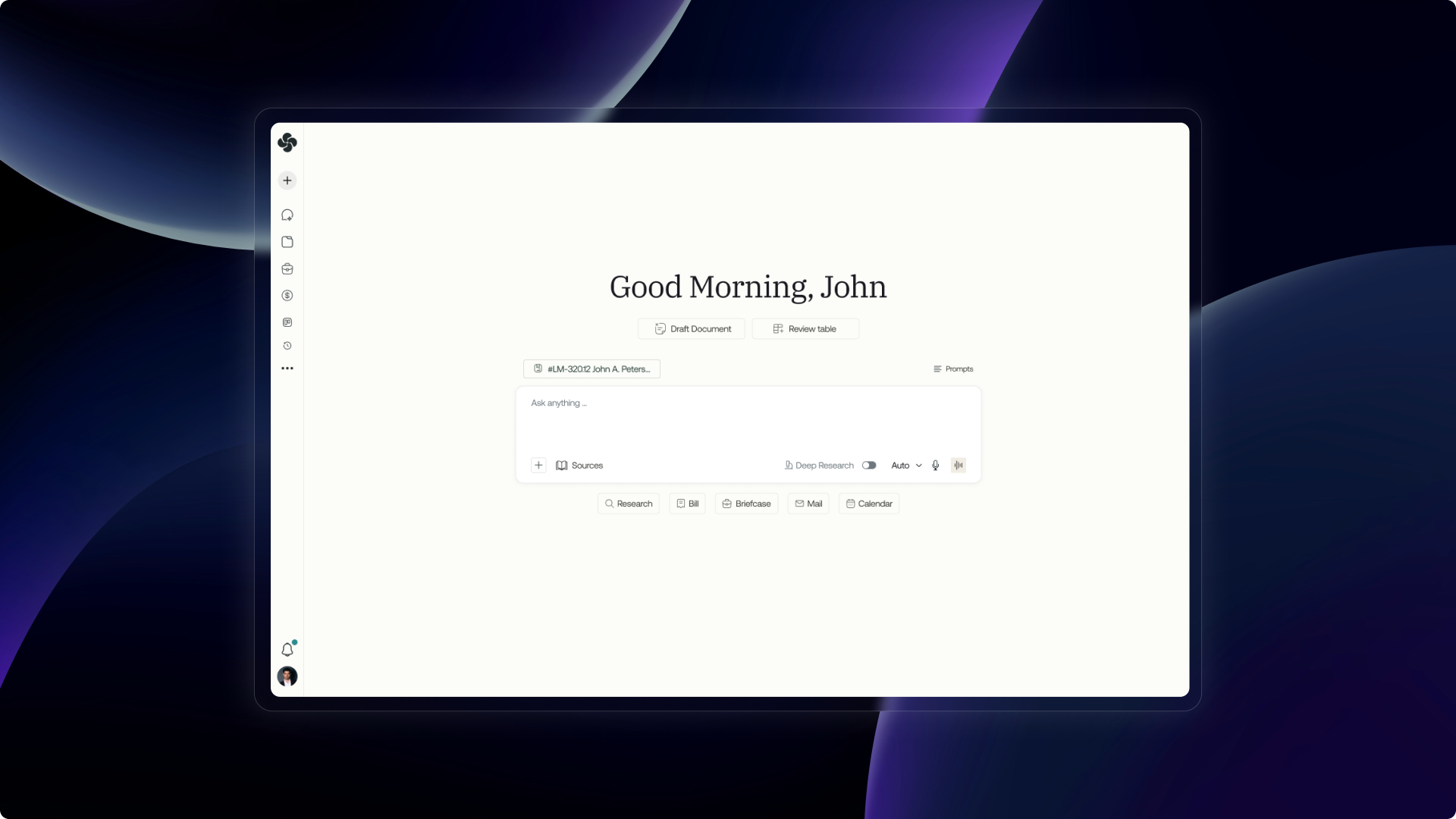
What Ask Sque does
Ask Sque is the command center of the product — a multi-turn AI chat that knows your matters, your clients, your files, and your firm's rules. Ask it to research a question, draft a clause, review a document, or run a workflow, and it works from the same context window you've been building.
Unlike a general-purpose AI tool, Ask Sque is scoped to your firm. The model knows which matter you're in, which files are attached, which connectors are live, and what your compliance rules say before it writes a single word.
Context that follows you
The power of Ask Sque comes from what it knows when you open a conversation.
Select any active matter from the context picker. Ask Sque loads the matter's parties, key dates, and linked briefcase files automatically.
Drag any file into the chat — PDFs, DOCX, XLSX. Ask Sque reads and reasons over the full document inline.
Authorised MCP connectors (Gmail, Westlaw, Outlook) appear as available tools. Ask Sque calls them automatically or on request.
Models and controls
Sque gives you control over the model and how it behaves. Admins set firm defaults; users can override in Settings → Ask Sque.
| Setting | `What it controls` |
|---|---|
| Model | Switch between available models (e.g. Sque Pro, fast mode) |
| Tone | Formal, balanced, or concise output style |
| Sources | Limit research to connectors, briefcase, or both |
| MCP approval | Auto-approve tool calls or require confirmation each time |
| Billing mode | Whether each session logs billable time automatically |
| Language | Output language for drafts and summaries |
Chat history and session restore
Every conversation is saved automatically. Access past sessions from the History rail in the sidebar or via the chat history page.
- 1
Open History from the sidebar or go to
/chat-history - 2
Search by keyword or filter by date
- 3
Click any session to restore it — the model resumes with the same context
- 4
Share a session link via the Share button — recipients get a read-only view
Starred sessions appear at the top of your history. Star anything you'll want to revisit.
Review tables and workflow integration
Ask Sque isn't just a chat pane — it connects to the other modules.
Open a review table alongside chat. Ask Sque can fill columns, compare clauses, and flag issues directly in the table.
Run any published workflow from chat with /run or the workflow picker. The run status streams inline.
Important notes
Ask Sque respects matter permissions. A user without access to a matter cannot use Ask Sque to read or write its files.
Each model call counts against your firm's monthly AI quota. Check Settings → Usage to monitor consumption.
FAQ
Can I use Ask Sque without a matter selected?
Yes — conversations without a matter context work like general legal AI chat. Select a matter to unlock grounded, file-aware answers.
Are shared session links permanent?
Shared links remain active until the session owner deletes them or the firm admin disables sharing.
Can clients access Ask Sque?
Not directly. Clients access Sque via the Client Portal (Spaces) — they do not have access to Ask Sque.
How does billing mode work?
When enabled, each session logs a draft time entry to Billing automatically. You review and approve it before it finalises.
What's next
Open Ask Sque from the left nav or press ⌘K to start a new session. Select a matter, attach a file, and ask your first question.