
1.The Complete Workflow
Sque manages the complete legal billing workflow: from work performed, through tracking and approval, to invoice creation and payment collection.
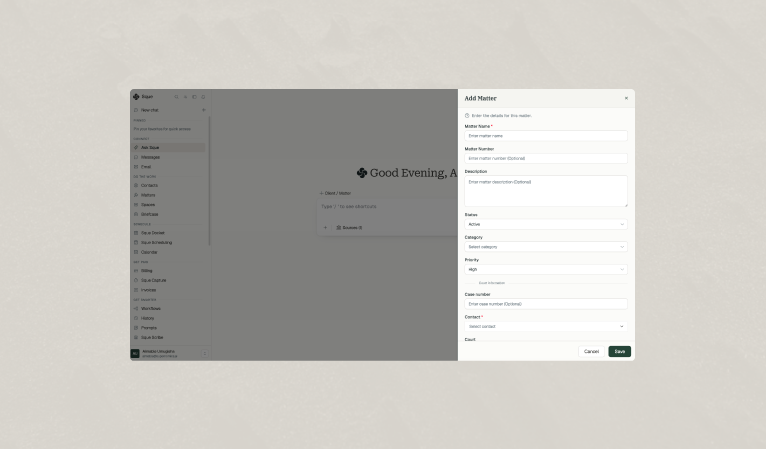
Step 1: Create or Open a Matter
Every piece of billable work is associated with a matter (case). Start by creating a new matter or opening an existing one:
- Navigate to "Matters"
- Click "+ New Matter" (or view existing matters)
Fill in matter details:
- Matter Name: e.g., "Smith v. Jones", "Acme Corp - Patent"
- Client: Select from your client list
- Description: Background and scope
- Status: Open, Closed, or Pending
- Click "Create" or "Save"
- The matter now exists in your system
Step 2: Create a Billing Entry (Time or Expense)
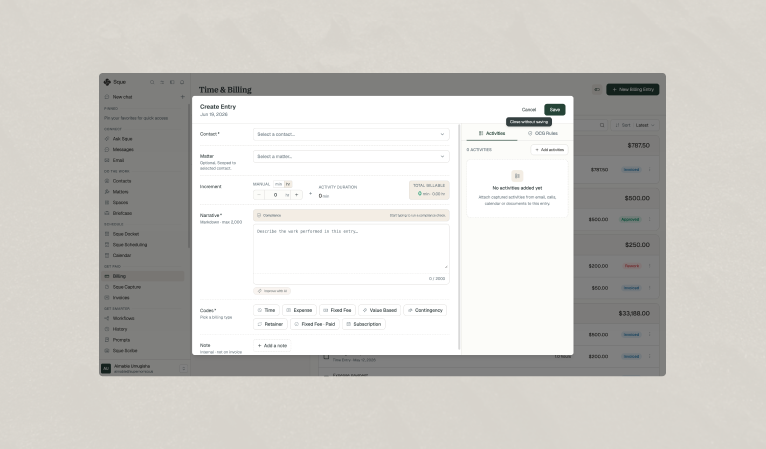
Record all work performed on the matter. Each piece of work becomes a billing entry.
Creating a Billing Entry
- Navigate to "Billing" > "Billing Entries"
- Click "+ New Billing Entry"
- Select "Time Entry" as the type
Fill in the following fields:
- Client: Who this time is billed to
- Matter: (Optional) Which case this work is for
- Time Spent: Hours worked (e.g., 2.5 for 2.5 hours)
- Hourly Rate: Your billing rate (e.g., $300/hour)
- Narrative: Description of work (e.g., Drafted motion for summary judgment; reviewed client feedback)
- Date: When the work was performed
- Billing Category: (Optional) Type of work (e.g., Research, Drafting, Consultation)
- Click Save
- The entry is created with Pending approval status
Creating an Expense Entry
- Navigate to "Billing" > "Billing Entries"
- Click "+ New Billing Entry"
- Select "Expense" as the type
Fill in:
- Client: Who this expense is billed to
- Matter: (Optional) Which case
- Amount: The dollar amount of the expense
- Narrative: Description (e.g. Court filing fee for motion)
- Date: When the expense occurred
- Click Save
Step 3: Review and Approve Billing Entries
Before billing entries can be invoiced, they must be reviewed and approved. This prevents errors and ensures only billable work is sent to clients.
- Navigate to Billing Entries
- Look for entries with Pending approval status
- Click on an entry to open it
Review the details:
- Is the narrative clear and professional?
- Is the amount correct?
- Is this work billable to this client?
- If everything looks correct, click Approve.
- If there's an error, you can edit the entry or click "Decline".
- The entry status changes to Approved
Filters for Billing Entries
Use filters to find entries needing action:
- Approval Status: Filter to show only Pending entries
- Client: Filter to show entries for a specific client
- Date Range: Filter by when work was performed
Step 4: Create an Invoice
Once billing entries are approved, they're ready to be invoiced. Create an invoice to send to the client.
- Navigate to "Invoices"
- Click "+ New Invoice"
Fill in invoice details:
- Client: Who the invoice is for
- Matter: (Optional) Which matter (if matter-specific)
- Invoice Period: Date range of work (e.g., "January 1 - 31, 2026")
- Invoice Number: Auto-generated or custom
- Issue Date: When the invoice is being sent
- Due Date: Payment deadline (e.g., 30 days from issue)
- Click Generate Invoice
- Sque pulls all approved billing entries for that client and period
Review the invoice:
- Check each line item (billing entry included)
- Verify narratives are clear
- Confirm amounts and total
If needed, you can add adjustments:
- Discount: Reduce the total by a fixed amount or percentage
- Tax: Add sales tax or other taxes
- Click Save to create the invoice as a draft
Step 5: Send the Invoice
When the invoice is ready, send it to the client.
- Open the invoice (from Invoices list)
- Review it one final time
- Click Send to Client or Send Invoice
Select how to send:
- Email: Send directly to client email
- Client Portal: Post to secure client portal
- The invoice status changes to "Sent"
- All included billing entries change to "Invoiced"
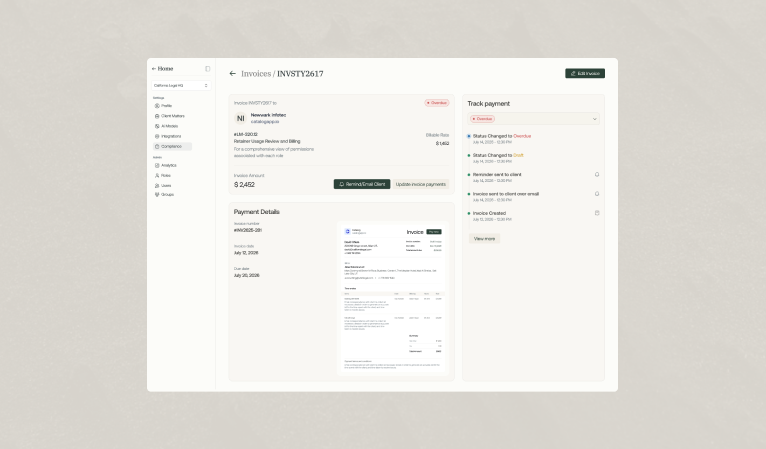
Step 6: Track Invoice Payment
Monitor invoice status and payment:
- Navigate to Invoices.
Check each invoice's payment status:
- Pending: Awaiting payment
- Partial: Partial payment received
- Paid: Fully paid
- Overdue: Past due without payment
When payment is received:
- Update the payment status to Paid or Partial
- Record the payment date and amount
2.Complete Workflow Example
Here's a real-world example of the complete workflow:
- Create matter: Acme Corp - Contract Review for client Acme Inc.
- Attorney performs 5 hours of contract review at $300/hour
- Attorney enters time entry: 5 hours, $1,500 (5 × $300)
- Narrative: Reviewed 45-page software license, identified 3 IP risk clauses
- Entry status: Pending
- Billing manager reviews the entry
- Manager approves it
- Entry status: Approved
- At month end, create invoice for Acme Inc. for January 1-31
- Invoice includes the $1,500 time entry
- Total invoice: $1,500
- Send invoice to Acme Inc.
- Invoice status: Sent; Entry status: Invoiced
- Client receives invoice and approves it
- Client pays $1,500 to your firm
- Update invoice payment status to Paid
3.Workflow Summary
| Action | Status |
|---|---|
| Create matter | Matter created |
| Perform work and record as billing entry | Entry: Pending |
| Review and approve billing entry | Entry: Approved |
| Create invoice from approved entries | Invoice: Draft |
| Send invoice to client | Invoice: Sent; Entry: Invoiced |
| Receive and record payment | Invoice: Paid |
Frequently asked questions
Yes. You can update your personal preferences at any time from your profile settings, including notifications, display options, and workspace defaults. Changes apply to your account immediately unless noted otherwise.
Your preferences can affect tone, formatting, and how responses are presented, but they do not change the underlying legal definitions or matter-specific context Sque uses when analyzing your documents and queries.