
1.Initial Setup
When your firm first adopts Sque, an administrator will set up the core workspace and establishes the foundation for your entire team.
OAuth Connection to Microsoft 365
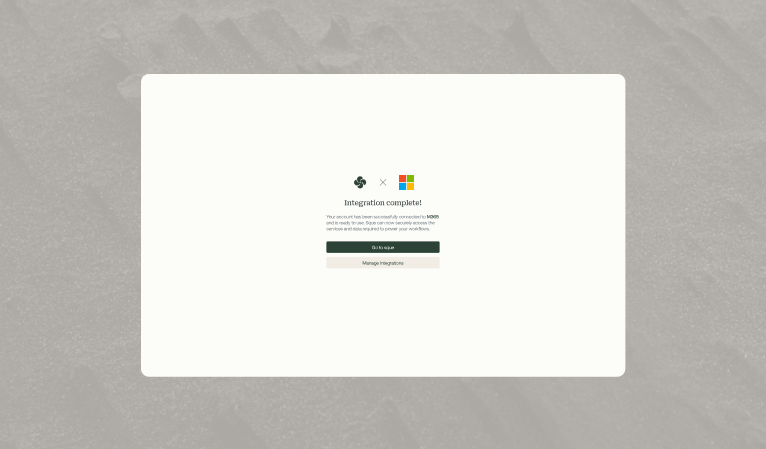
Sque integrates with your Microsoft 365 tenant (Outlook, Word, Teams) via a single OAuth connection. This happens once and requires your IT administrator to approve Sque access for your organization.
- Your IT administrator contacts your Sque onboarding team
- A connection link is provided
- Your IT administrator approves the OAuth request (similar to authorizing Google Sign-In or Salesforce)
- Approval is granted at the tenant level (one approval for all users)
- The connection is complete. All users can now access Sque
2.Key Configuration Areas
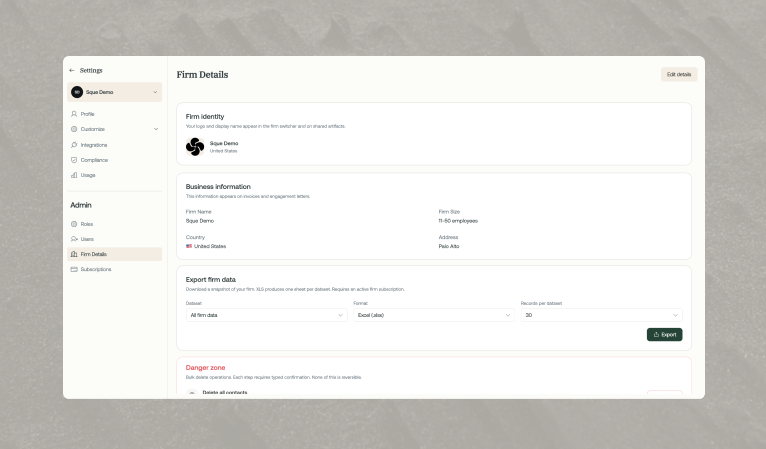
Your firm information is stored in Sque and used on invoices and documents:
- Firm name and logo
- Address and contact information
- Tax ID and bar numbers
User Management
Add team members and assign roles:
| Role | Access |
|---|---|
| Administrator | Full access to settings, users, and workspace configuration |
| Attorney/Counsel | Create and manage matters, enter billing entries, create invoices |
| Paralegal | Support matters, enter time and expenses, manage documents |
| Billing Staff | Access to invoicing, billing entries and payment tracking |
| Client User | View assigned matters, documents, and payment info only |
Integration with Practice Management Systems
Sque can integrate with your existing practice management system. Current supported integrations include:
- Clio: Sync cases, time entries, and client information
- PracticePanther: Sync matters and billing data
- Sque Native: Full native use of Sque
Your administrator configures which system Sque pulls data from. You can see which system a billing entry was billed to via the "platform_billed_to" field (clio, practice_panther, or sque).
3.Inviting Team Members
How Invitations Work
Administrators invite team members via email. When you invite someone:
- Administrator enters the person's email address
- Sque sends an invitation email
- User clicks the invitation link and creates their account
- They can now access Sque with their assigned role
4.Setting Up Billing Workflow
Understanding Billing Statuses
Billing entries move through different states:
| Status | Meaning |
|---|---|
| Pending | Entry created but not yet approved for invoicing |
| Approved | Approved by reviewer, ready to include in an invoice |
| Invoiced | The entry has been included in an invoice sent to the client |
| Declined | Entry rejected (e.g., not billable to this client) |
Approval Workflow
Best practice for billing:
- Attorney/paralegal enters time entry or expense
- Entry is created with "Pending" approval status
- Billing staff or manager reviews the entry
- Reviewer approves or declines
- Approved entries are available for inclusion in invoices
5.Invoice Configuration
Invoice Types
Sque supports different invoice types:
- Usage: Standard hourly or per-item billing
- Deposit: Retainer or advance payment invoices
- Refund: Credit memos and refunds
| Payment Status | Meaning |
|---|---|
| Pending | Invoice sent; awaiting payment |
| Partial | Partial payment received |
| Paid | Invoice fully paid |
| Failed | Payment attempt failed |
| Overdue | Invoice past due without payment |
6.Security and Compliance
Data Isolation
Each firm's data is completely isolated. Your clients, matters, and billing information are secure and separate from other firms using Sque.
Audit Trails
All actions in Sque are logged who created or modified a billing entry, when invoices were sent, payment status changes, etc. This creates a complete audit trail for compliance.
Role-Based Access
Team members see only what their role permits. Confidential client information is restricted to authorized users. Clients see only their own matters and invoices.
Frequently asked questions
Yes. You can update your personal preferences at any time from your profile settings, including notifications, display options, and workspace defaults. Changes apply to your account immediately unless noted otherwise.
Your preferences can affect tone, formatting, and how responses are presented, but they do not change the underlying legal definitions or matter-specific context Sque uses when analyzing your documents and queries.