
1.What Is Ask Sque?
Ask Sque is an AI assistant built into the Sque platform to help legal professionals research, analyze, and draft legal work. Ask Sque works alongside you in your workspace, with access to your documents, matters, clients, and data.
2.How Ask Sque Works
Ask Sque is a legal AI that understands your questions and responds with relevant information. Within Sque, Ask Sque can:
- Search the web for legal information, cases, statutes, and precedents
- Access documents you've uploaded to briefcases
- Review data in your spreadsheets and tables
- Answer questions about your matters and clients
- Help draft, review, and improve legal documents
- Provide analysis and research on legal topics
3.What Ask Sque Is NOT
It's important to understand Ask Sque's limitations:
- NOT a substitute for a lawyer: Ask Sque cannot provide legal advice or serve as your attorney
- NOT always accurate: AI responses can contain errors. Always verify information independently
- NOT aware of your firm's prior work: It can only see documents you share with it only.
4.How to Access Ask Sque
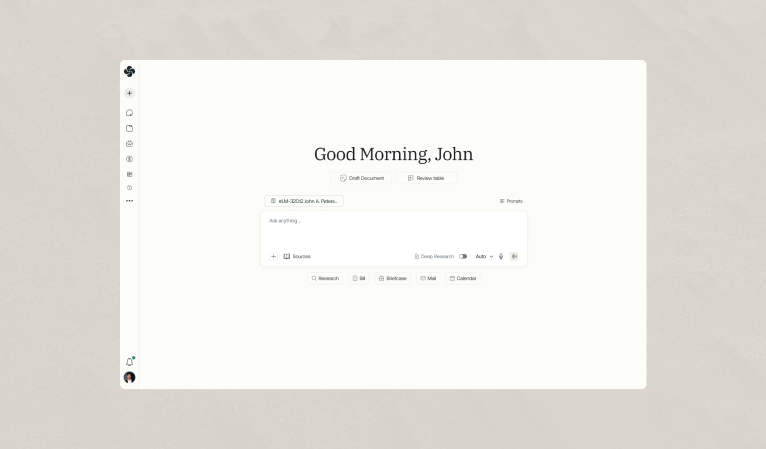
- Within Sque, look for an AI icon, chat button, or "Ask Sque" prompt
- Click to open the Ask Sque chat interface
- Type your question or request
- Ask Sque responds with information and analysis
- Continue the conversation with follow-up questions
5.Who Uses Sque?
Sque is built for legal professionals of all kinds:
- Partners and Senior Counsel managing cases and client relationships
- Associates handling daily legal work, research, and drafting
- Paralegals organizing documents, coordinating tasks, and managing case details
- Billing and Operations teams ensuring accurate invoicing and firm profitability
- Clients who need visibility into matter progress and documentation
6.Getting Started With Sque
To begin using Sque:
- Your administrator will invite you to your firm's Sque workspace
- You will receive an email invitation with a sign-up link
- Click the link, set your password, and log in
- Complete your profile setup (name, role, preferences)
- You're ready to start working. Explore the interface and create your first matter.
Frequently asked questions
Yes. You can update your personal preferences at any time from your profile settings, including notifications, display options, and workspace defaults. Changes apply to your account immediately unless noted otherwise.
Your preferences can affect tone, formatting, and how responses are presented, but they do not change the underlying legal definitions or matter-specific context Sque uses when analyzing your documents and queries.